Guide
Sign a PDF with your finger — using your phone as the pen
Mouse-drawn signatures look like a lie detector test. SignDrop turns your phone into a signature pad: scan a QR code, draw with your finger, and the signature lands in the document on your desktop — instantly, with no app to install.
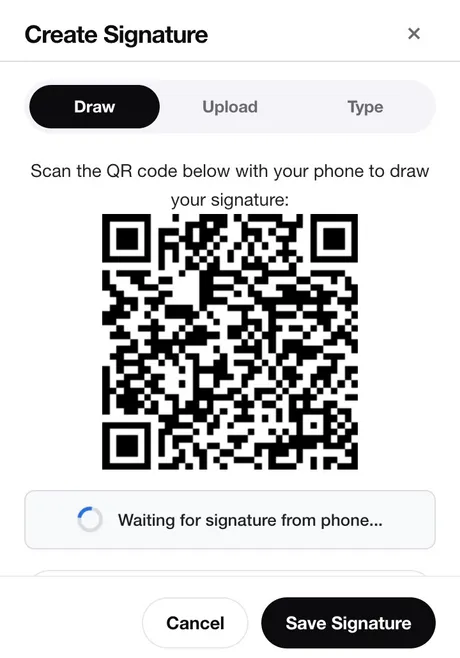
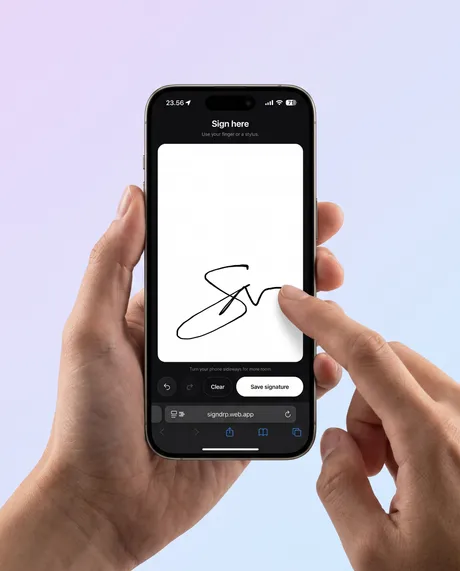
The full flow, step by step
- Open your PDF in Chrome and click SignDrop → Add signature → Draw
- Point your phone’s camera at the QR code — a signing page opens in your phone browser
- Draw your signature with your finger (turn the phone sideways for more room) and tap Save signature
- The signature appears on your desktop instantly — drag it into place and download the signed PDF
Common questions
Do I need to install anything on my phone?
No. Scanning the QR code opens a simple signing page in your phone’s browser. You draw, tap save, and you’re done — no app, no account.
Is the phone connection private?
The phone session transfers only your signature drawing — never the document. It uses a temporary, unguessable session that stops working after 5 minutes, and your signature is deleted the moment it arrives.
Can I do the whole thing on my phone, without a computer?
Not yet — today the document is signed in Chrome on your computer, and the phone is the drawing pad. A mobile app for fully on-phone signing is planned.
Why not just draw with the mouse?
You can — but mouse signatures famously look like a heart-rate readout. Fingers on glass produce the signature you actually have. Draw it once on the phone; SignDrop saves it for every future document.
Your real signature, not a mouse scribble
Add SignDrop to Chrome — freeFree forever · No account · No app install on your phone